
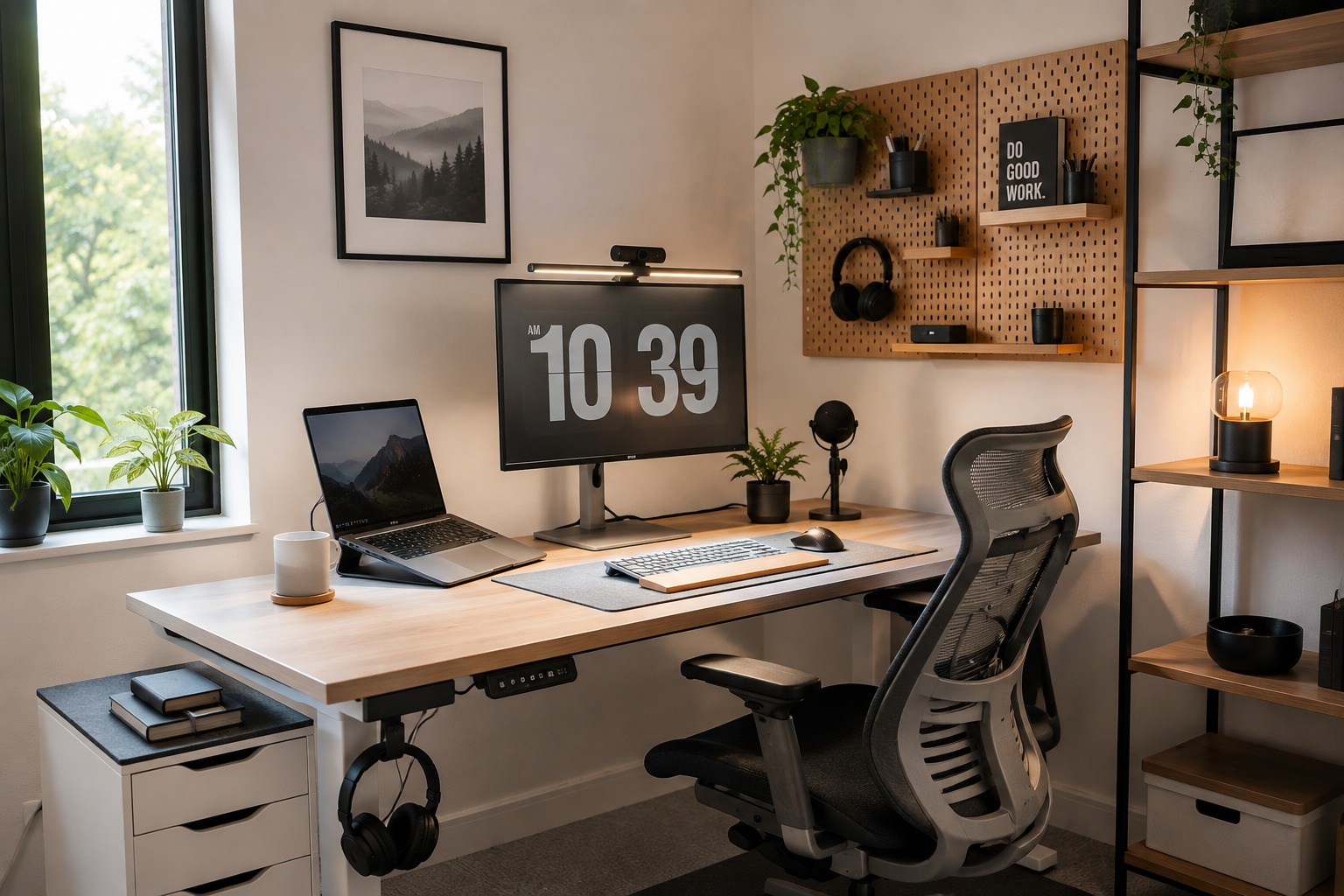
A good home office should feel comfortable, organized, and easy to use every day.
The goal is not to fill the room with expensive furniture or dozens of accessories. A few thoughtful changes can make a much bigger difference.
In this guide, we’ll go through 12 practical home office setup ideas that can help improve comfort, reduce clutter, create better lighting, and make your workspace more productive.
Jump to Any Home Office Setup Idea
- Start With the Right Desk Position
- Improve Your Lighting
- Set Your Monitor at the Right Height
- Choose a Comfortable Chair
- Keep the Desktop Clear
- Organize Your Cables
- Add Useful Storage
- Create a Dedicated Charging Area
- Use Accessories That Improve Productivity
- Add Plants Without Overcrowding
- Reduce Visual Distractions
- Create Clear Work Zones
- Home Office Setup Checklist
- Common Home Office Setup Mistakes
- FAQ
1. Start With the Right Desk Position
Where you place your desk can affect lighting, comfort, and how focused the workspace feels.
If possible, position the desk near a window to benefit from natural light without placing the monitor directly in front of strong sunlight.
Try to avoid sitting with bright light directly behind the screen because it can create glare and make the display harder to see.
A desk placed against a wall can work well in smaller rooms, while placing it slightly away from the wall can create more space for cable management and storage.
Quick Tip
Before adding accessories, spend some time testing the desk position.
Moving the desk even a small distance can improve lighting, chair movement, and the overall feel of the workspace.
2. Improve Your Lighting
Good lighting can make a home office feel more comfortable and reduce eye strain during long work sessions.
The best setup usually combines natural light with one or two artificial light sources.
Useful options include:
- a desk lamp
- a monitor light bar
- a floor lamp
- indirect ambient lighting
- wall-mounted lighting
Avoid relying on one harsh overhead light if possible.
A softer mix of light sources usually creates a more comfortable workspace and gives you better control throughout the day.
Reduce Screen Glare
Position lamps so they do not shine directly onto the monitor.
If your desk is near a window, blinds or curtains can help control bright sunlight during certain hours.
Quick Tip
Use warmer lighting for a more relaxed workspace and brighter neutral lighting when you need stronger focus for detailed tasks.
3. Set Your Monitor at the Right Height
Monitor height has a big impact on how comfortable your home office feels during long work sessions.
Ideally, the top portion of the screen should sit around eye level so you are not constantly looking down or tilting your head upward.
You can raise the monitor using:
- a monitor arm
- a monitor stand
- a desk shelf
- a sturdy riser
A monitor arm is especially useful because it frees up desk space and gives you more control over screen position.
Keep the Right Distance
The monitor should also be far enough away that you can view the entire screen comfortably without leaning forward.
For most setups, an arm’s-length distance is a good starting point.
Quick Tip
Adjust your chair and monitor together.
A good monitor position will not help much if your chair height forces you into an awkward posture.
4. Choose a Comfortable Chair
A comfortable chair can make a bigger difference to a home office than almost any decorative upgrade.
You do not necessarily need the most expensive ergonomic chair, but it should support your body properly and allow you to adjust your sitting position.
Look for features such as:
- adjustable seat height
- good lower-back support
- comfortable seat padding
- adjustable armrests
- enough room to move naturally
- a stable base
Your feet should rest comfortably on the floor, and your arms should be able to reach the keyboard without forcing your shoulders upward.
Do Not Ignore Desk Height
Even a good chair can feel uncomfortable if the desk is too high or too low.
Try to adjust the chair so your elbows stay roughly level with the desk while typing.
If your feet no longer reach the floor comfortably, a footrest can help.
Quick Tip
Comfort matters more than appearance.
A chair that looks perfect in photos but becomes uncomfortable after an hour is not a good choice for a workspace you use every day.
5. Keep the Desktop Clear
A cluttered desk can make even a well-designed home office feel distracting.
Try to keep only the items you actually use during a normal workday on the main surface.
That usually includes:
- monitor or laptop
- keyboard and mouse
- one light source
- notebook or planner
- a few essential accessories
Everything else can usually be moved into drawers, shelves, wall storage, or under-desk organizers.
Create a Clear Work Area
Leave one section of the desk completely open.
This gives you space for writing, reading, placing a tablet, or handling temporary tasks without having to move things around every time.
Quick Tip
If an item has not been used in several weeks, it probably does not need to stay on the desktop.
6. Organize Your Cables
Cable clutter can make a home office feel messy even when the rest of the workspace is well organized.
Start by keeping power strips, adapters, and excess cable length off the floor whenever possible.
Useful options include:
- an under-desk cable tray
- adhesive cable clips
- reusable Velcro ties
- cable sleeves
- a mounted power strip
Try to route most cables toward one hidden path behind or underneath the desk instead of letting wires run in different directions.
If cable clutter is one of the biggest problems in your setup, check out our full guide on How to Hide Cables in a Desk Setup.
Quick Tip
Leave a little slack in cables connected to monitors, laptops, or adjustable desks.
A clean setup should still be easy to move, unplug, and upgrade.
7. Add Useful Storage
Good storage keeps everyday items close without turning the desk into a pile of accessories.
For a home office, useful storage options include:
- desk drawers
- floating shelves
- wall-mounted pegboards
- under-desk drawers
- small desktop organizers
- nearby cabinets
The best option depends on how much space you have and what you actually need to store.
Try to keep frequently used items within easy reach while moving rarely used items farther away from the main work area.
Use Vertical Space
If the room is small, wall storage can be especially useful.
Shelves and pegboards let you store notebooks, headphones, chargers, and small accessories without taking up valuable desk space.
Quick Tip
Avoid adding storage just because there is empty space.
Too many organizers can create as much clutter as the items they are supposed to hide.
8. Create a Dedicated Charging Area
Charging cables can quickly spread across a desk and make the workspace feel more cluttered.
Instead of plugging devices in wherever there is space, create one small charging area for the things you use most often.
This can include:
- a wireless charging stand
- a compact multi-device charger
- a USB-C charging hub
- a small tray for earbuds and accessories
Keeping charging in one place makes cables easier to manage and gives frequently used devices a clear home.
Keep It Near the Edge
Place the charging area near the side or back of the desk rather than in the center of your main work zone.
This keeps devices accessible without taking over the space used for typing or writing.
Quick Tip
Try to use the shortest practical charging cables.
Long cables create unnecessary clutter, especially when several devices are charging in the same area.
9. Use Accessories That Improve Productivity
The best home office accessories are the ones that solve a real problem.
Instead of filling the desk with gadgets, focus on tools that make your daily workflow easier.
Useful examples include:
- a monitor arm for better screen positioning
- a laptop stand for improved ergonomics
- a desk mat for a cleaner work surface
- a USB-C hub for simpler connectivity
- a headphone hook or stand
- a small desk organizer
- a footrest for extra comfort
If you want more ideas, check out our guide to the 15 Best Desk Accessories for a Clean Setup.
Choose Function Over Hype
A useful accessory should save space, improve comfort, reduce clutter, or make something easier to access.
If it does none of those things, it probably does not need a permanent place in your setup.
Quick Tip
Add accessories one at a time.
This makes it much easier to see which upgrades actually improve your workspace and which ones are just taking up space.
10. Add Plants Without Overcrowding
Plants can make a home office feel warmer and more inviting, but too many can quickly take over valuable desk space.
For most setups, one or two small plants are enough to add some color without creating clutter.
Good places for plants include:
- the corner of the desk
- a floating shelf
- a nearby cabinet
- a windowsill
- a small wall-mounted planter
Choose plants that fit the amount of natural light in the room and do not require constant attention.
Keep the Main Work Area Clear
Avoid placing plants directly in front of the monitor, keyboard, or other frequently used items.
The goal is to make the workspace feel more pleasant without reducing functionality.
Quick Tip
If desk space is limited, move greenery upward.
A shelf or wall-mounted planter gives you the same visual effect without using valuable desktop space.
11. Reduce Visual Distractions
A home office can feel much easier to work in when the space around the desk is visually calm.
Too many decorations, cables, open shelves, notifications, and unrelated items can make the workspace feel busy.
Try to reduce distractions by:
- keeping the desktop mostly clear
- hiding unnecessary cables
- limiting decorative items
- organizing open shelves
- moving non-work items away from the desk
- keeping frequently used tools in consistent places
The goal is not to create an empty workspace.
It is simply to make the things that matter easier to notice and everything else less distracting.
Control Digital Distractions Too
A clean desk helps, but notifications can still break your focus.
Consider keeping your phone outside the main work area or using focus modes during work sessions.
Quick Tip
Choose one or two visual focal points, such as a plant, lamp, or framed print.
A few intentional details usually look better than filling every available surface.
12. Create Clear Work Zones
Even a small home office can feel more organized when different parts of the workspace have clear purposes.
Instead of letting everything mix together, divide the desk into simple zones.
For example:
- center zone for your main work
- one side for charging
- one area for notes or planning
- wall or shelf space for storage
- under-desk space for cables and accessories
This makes it easier to keep the desk organized because every item has a natural place.
Keep the Main Zone Open
Your primary work area should stay as clear as possible.
This is usually the space directly in front of the monitor where you type, write, or use a laptop.
Try not to let chargers, notebooks, or decorative items slowly take over this area.
Quick Tip
Your zones do not need physical dividers.
Simple placement is enough. Once you consistently keep similar items in the same area, the workspace becomes much easier to maintain.
Home Office Setup Checklist
Before adding more furniture or accessories, make sure the basics of your home office are working well.
Use this quick checklist:
- desk positioned with comfortable lighting
- monitor set at a comfortable height
- chair adjusted for good posture
- main desktop area kept mostly clear
- cables routed underneath or behind the desk
- frequently used items within easy reach
- storage placed without blocking movement
- charging devices kept in one dedicated area
- lighting positioned to reduce screen glare
- unnecessary visual distractions removed
- enough space available for writing or temporary tasks
- work zones clearly defined
If most of these points are covered, your home office already has a strong foundation.
Quick Tip
Do not try to redesign the entire workspace in one day.
Start with the biggest problem in your setup, fix it, and then improve the next one.
Common Home Office Setup Mistakes
A home office can look good and still be uncomfortable or difficult to use.
Here are some common mistakes to avoid.
Choosing Style Over Comfort
Aesthetic furniture can look great in photos, but comfort matters more if you spend hours at your desk.
Prioritize a supportive chair, practical desk height, and a comfortable monitor position before decorative upgrades.
Ignoring Lighting
Poor lighting can make the workspace feel tiring and create unnecessary screen glare.
Use a mix of natural and artificial light and adjust it based on the time of day.
Letting Cables Pile Up
Loose cables can quickly make even a clean office feel messy.
Use trays, clips, and Velcro ties to keep power cords and charging cables under control.
Adding Too Many Accessories
Not every useful-looking gadget deserves a permanent place on the desk.
Too many accessories reduce available work space and create visual clutter.
Forgetting About Storage
Without a clear place for notebooks, chargers, documents, and small tools, clutter tends to return quickly.
Use drawers, shelves, or wall storage to give frequently used items a consistent home.
Creating a Workspace That Is Hard to Maintain
A setup that looks perfect only after 30 minutes of organizing is not very practical.
The best home office should be easy to reset at the end of the day.
Mixing Work and Personal Clutter
Try to keep unrelated items away from the main workspace whenever possible.
Clear boundaries make it easier to keep the office organized and focused.
FAQ
What should every home office have?
A practical home office should have a comfortable chair, a desk with enough working space, good lighting, a properly positioned monitor or laptop, and a simple storage system.
Cable management and a clear work surface also make the space easier to use every day.
How can I make my home office more productive?
Start by reducing distractions and keeping frequently used tools within easy reach.
Good lighting, a comfortable chair, organized cables, and clearly defined work zones can also make the workspace easier to focus in.
Where should I place my desk in a home office?
If possible, place the desk near natural light without positioning the monitor directly in front of strong sunlight.
You should also leave enough room for your chair, cable routing, and any storage you use regularly.
How can I make a small home office feel less cluttered?
Keep the desktop mostly clear, use wall or under-desk storage, hide unnecessary cables, and avoid oversized accessories.
If space is especially limited, see our guide to Small Desk Setup Ideas for Limited Space.
What are the most useful home office accessories?
Useful accessories include a monitor arm, laptop stand, desk mat, USB-C hub, cable tray, desk lamp, headphone holder, and compact organizer.
Choose accessories based on problems in your setup rather than adding products simply for decoration.
How much should I spend on a home office setup?
There is no fixed amount.
Start with the essentials that affect comfort and usability, such as your chair, desk, lighting, and monitor position. You can add storage and accessories gradually instead of buying everything at once.
Final Thoughts
A better home office does not require a complete redesign.
Start with the basics: position your desk well, improve your lighting, make your chair and monitor comfortable, and keep the main work area organized.
From there, small upgrades such as better cable management, useful storage, and carefully chosen accessories can make the workspace easier to use every day.
Focus on creating a setup that fits the way you actually work rather than trying to copy a perfect-looking office from a photo.
For more workspace ideas, explore our guides to 15 Best Desk Accessories for a Clean Setup, How to Hide Cables in a Desk Setup, and Small Desk Setup Ideas for Limited Space.
Leave a Reply