
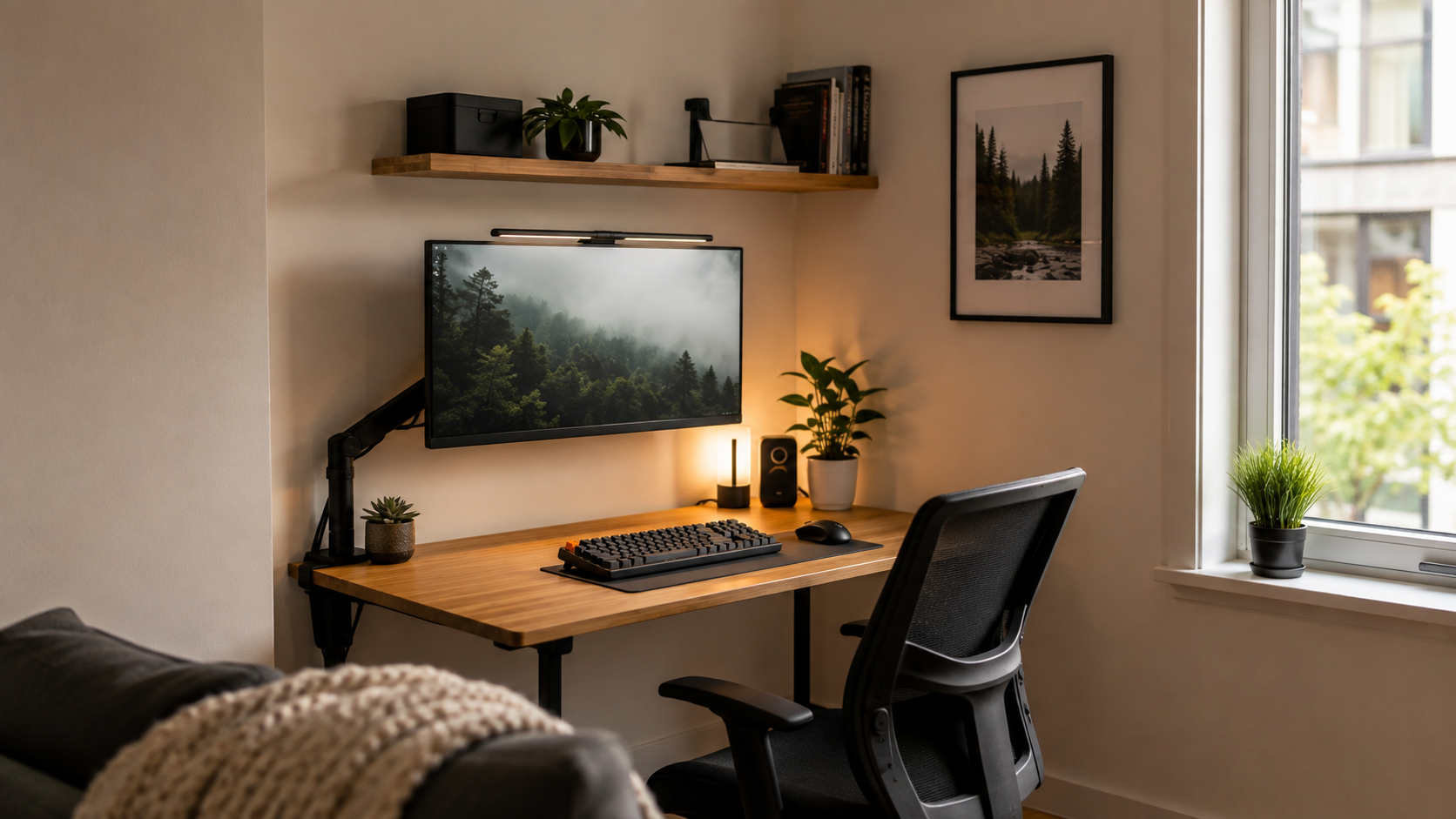
A small desk does not have to feel cramped.
With the right layout and a few practical upgrades, even a limited workspace can feel clean, comfortable, and surprisingly functional.
The key is to use the space you have more efficiently instead of trying to fit more things onto the desktop.
In this guide, we’ll look at 10 practical small desk setup ideas that can help you save space, reduce clutter, and create a workspace that works well for studying, working from home, gaming, or everyday use.
Jump to Any Small Desk Setup Idea
- Use a Monitor Arm
- Choose a Compact Desk
- Use Vertical Space
- Keep the Desktop Minimal
- Add an Under-Desk Drawer
- Use a Laptop Stand
- Improve Cable Management
- Choose Compact Lighting
- Use Multi-Purpose Accessories
- Keep Frequently Used Items Within Reach
- Small Desk Setup Checklist
- Common Small Desk Setup Mistakes
- FAQ
Why Small Desk Setup Planning Matters
When desk space is limited, every item needs a purpose.
Large accessories, unnecessary cables, and poor placement can quickly make a small workspace feel crowded.
A good small desk setup focuses on three things:
- keeping the main work area clear
- using vertical and under-desk space
- choosing accessories that solve more than one problem
You do not need to remove everything from your desk. The goal is simply to make better use of the available space.
1. Use a Monitor Arm
A monitor stand can take up a surprising amount of desk space.
Replacing it with a monitor arm frees up the area underneath the screen and gives you more room for a keyboard, notebook, speakers, or other essentials.
A monitor arm also makes it easier to adjust screen height and position without moving the entire monitor base.
For small desks, look for a model with:
- a compact clamp mount
- built-in cable management
- enough adjustment for your monitor size
- a small footprint behind the desk
Quick Tip
If your desk is pushed close to a wall, check how much rear clearance the monitor arm needs before buying one.
Some arms extend far behind the desk when adjusted.
2. Choose a Compact Desk
A small room does not always need the largest desk that can physically fit inside it.
A compact desk can leave more space for your chair, storage, and movement while still giving you enough room for the essentials.
For limited spaces, focus on:
- a narrow or shallow desktop
- simple legs or a slim frame
- enough depth for your monitor and keyboard
- built-in storage only if you actually need it
Desks with oversized drawers, thick side panels, or bulky shelves can make a small workspace feel even tighter.
Measure Before You Buy
Check both the width and depth of the available space.
A desk that is slightly narrower but has the right depth can often feel more comfortable than a wider desk that pushes you too close to the wall.
Quick Tip
If you mainly work on a laptop, you can usually get away with a much smaller desk than someone using multiple monitors and large speakers.
3. Use Vertical Space
When desktop space is limited, the wall above the desk becomes valuable storage space.
Instead of keeping everything on the surface, move lightweight items upward.
Useful options include:
- floating shelves
- wall-mounted pegboards
- small hooks
- vertical organizers
- monitor shelves
These can hold headphones, notebooks, controllers, small plants, charging accessories, and other items that would otherwise take up desk space.
Keep It Balanced
Do not overcrowd the wall.
A few well-placed storage options usually look cleaner than filling every available section with shelves and accessories.
Quick Tip
Keep frequently used items within easy reach and place decorative or rarely used items higher up.
That way, the setup stays practical instead of turning into a tiny wall-mounted warehouse.
4. Keep the Desktop Minimal
A small desk feels much more spacious when the main surface stays clear.
Try to keep only the items you use every day on the desktop.
For most setups, that usually means:
- monitor or laptop
- keyboard and mouse
- one light source
- a few essential accessories
Everything else can usually be moved to a drawer, shelf, pegboard, or under-desk storage.
Avoid Decorative Overload
Plants, figures, speakers, and desk accessories can make a setup feel more personal, but too many small items quickly make a limited workspace feel crowded.
Choose a few pieces you actually like instead of filling every empty corner.
Quick Tip
Leave one clear area of the desk completely open.
That empty space gives you room for a notebook, coffee, tablet, or anything else you temporarily need without reorganizing the whole setup.
5. Add an Under-Desk Drawer
When desktop space is limited, under-desk storage can be much more useful than another organizer sitting on top.
A shallow drawer mounted underneath the desk can hold small items such as:
- charging cables
- USB drives
- pens
- adapters
- notebooks
- small accessories
This keeps everyday items nearby without taking up valuable surface space.
Keep It Shallow
For a small desk, a deep drawer can get in the way of your knees or chair.
A slim under-desk drawer usually works better because it adds storage without making the workspace feel cramped.
Quick Tip
Use the drawer for small items you reach for often.
Larger objects are usually better stored on a nearby shelf or wall-mounted organizer.
6. Use a Laptop Stand
A laptop stand can free up useful desk space by lifting the laptop above the surface.
This works especially well if you use the laptop as a second screen alongside an external monitor.
A stand can also improve screen height and make the setup feel less crowded.
For small desks, consider:
- a compact adjustable stand
- a vertical laptop stand
- a foldable stand
- a stand with space underneath for accessories
Vertical Stands Save the Most Space
If you mostly use an external monitor, keyboard, and mouse, a vertical stand can reduce the laptop’s footprint significantly.
It keeps the laptop upright and out of the main working area.
Quick Tip
Make sure the stand does not block the laptop’s ventilation.
Good airflow matters, especially if the laptop is under load for long periods.
7. Improve Cable Management
Cables can make a small desk feel crowded very quickly.
Even if the desktop itself is organized, visible power cords, chargers, and monitor cables can make the whole setup look messy.
For a cleaner small desk setup, try to:
- mount the power strip underneath the desk
- use a cable tray for adapters and extra cable length
- route wires along the back edge
- secure loose cables with clips or Velcro ties
The goal is to keep as few cables visible as possible while still making them easy to access.
If cable clutter is one of your biggest problems, check out our full guide on How to Hide Cables in a Desk Setup.
Quick Tip
For very small desks, even removing one or two visible cable bundles can make the workspace feel noticeably cleaner.
8. Choose Compact Lighting
Good lighting matters, but a large desk lamp can take up valuable space on a small workstation.
For limited setups, choose lighting that provides enough brightness without using much desktop area.
Good options include:
- monitor light bars
- clamp-on desk lamps
- slim LED lamps
- wall-mounted lights
- compact adjustable lamps
A monitor light bar is especially useful because it sits directly on top of the screen and does not require any desk space.
Think About Placement
Position the light so it does not create glare on the monitor or shine directly into your eyes.
For reading or writing, an adjustable lamp can be more practical than purely decorative lighting.
Quick Tip
If your desk is against a wall, a clamp-on or wall-mounted light can free up even more space while keeping the work area well lit.
9. Use Multi-Purpose Accessories
When space is limited, accessories that solve more than one problem are especially useful.
Instead of adding several separate items, look for products that combine functions.
Examples include:
- a monitor stand with storage underneath
- a wireless charger that also works as a phone stand
- a desk shelf with space for small accessories
- a USB-C hub that reduces the number of separate adapters
- a headphone stand with built-in charging
This keeps the setup functional without filling the desk with extra gear.
Avoid Overcomplicating It
Multi-purpose accessories are only useful if you actually need the functions they provide.
A product with five features is not automatically better if you only use one of them.
Quick Tip
Before adding a new accessory, ask whether it replaces something already on the desk.
If it does, that is usually a good sign for a small setup.
10. Keep Frequently Used Items Within Reach
A small desk works best when the things you use most often are easy to reach.
If you constantly have to move objects around to access your charger, notebook, headphones, or other essentials, the setup will start to feel cramped very quickly.
Keep frequently used items close to the main working area and move less important items farther away.
Useful options include:
- a small desk organizer
- a side hook for headphones
- a shallow drawer
- a compact tray
- a nearby wall shelf
Create Simple Zones
Try to give different parts of the desk a clear purpose.
For example:
- center for work
- one side for charging
- one side for storage
- wall space for accessories
This makes a small desk easier to use without adding more furniture.
Quick Tip
If you have not used an item for several weeks, it probably does not need to stay on the desk.
Small Desk Setup Checklist
Before adding more accessories, make sure the basics of your small desk setup are working well.
Use this quick checklist:
- monitor positioned at a comfortable height
- enough room for your keyboard and mouse
- cables routed underneath or behind the desk
- frequently used items within easy reach
- unnecessary accessories removed
- lighting placed without blocking workspace
- storage moved under the desk or onto the wall
- laptop or second device positioned efficiently
- enough open space for temporary tasks
- chair can move freely without hitting storage or cables
If most of these points are covered, your setup is already using limited space efficiently.
Quick Tip
Do not try to optimize everything at once.
Start with the biggest space problem first, fix it, then move on to the next one.
Common Small Desk Setup Mistakes
A small workspace can feel much more cramped when the layout is not planned carefully.
Here are some of the most common mistakes to avoid.
Using Oversized Accessories
Large speakers, desk lamps, monitor stands, and organizers can take up more space than expected.
Choose compact alternatives whenever possible.
Filling Every Empty Space
Just because there is room for another accessory does not mean you need one.
Leaving some empty space makes the desk easier to use and visually cleaner.
Ignoring Vertical Storage
Keeping everything on the desktop wastes valuable wall space.
Shelves, pegboards, and hooks can move many items off the main work surface.
Poor Cable Management
Loose cables can make a small setup feel chaotic.
Route them underneath or behind the desk and keep excess cable length hidden.
Choosing Storage That Blocks Legroom
Large drawers or under-desk organizers can interfere with your knees and chair movement.
Always check available clearance before installing storage underneath the desk.
Keeping Too Many Rarely Used Items Nearby
Items you rarely use do not need premium desk space.
Move them to a shelf, cabinet, or another storage area and keep the desk focused on everyday essentials.
Buying Accessories Before Planning the Layout
It is easy to buy useful-looking accessories that do not actually fit your setup.
Measure the desk first, decide where each item will go, and then choose products that match the available space.
FAQ
What is the best desk size for a small room?
There is no single perfect size, but compact desks around 40–48 inches wide often work well for limited spaces.
The most important thing is having enough depth for your monitor, keyboard, and daily essentials without making the room feel crowded.
How can I make a small desk feel bigger?
Keep the main surface clear, use vertical storage, mount cables underneath the desk, and choose compact accessories.
Reducing visual clutter can make even a very small workspace feel noticeably more open.
Is a monitor arm worth it for a small desk?
Yes, especially if your monitor stand takes up a lot of surface space.
A monitor arm can free up the area underneath the screen and make positioning the monitor easier.
How do I organize a small desk without drawers?
Use wall shelves, pegboards, hooks, cable clips, compact trays, and under-desk storage.
The goal is to move storage away from the main work surface whenever possible.
What should I keep on a small desk?
Keep only the items you use regularly, such as your monitor or laptop, keyboard, mouse, lighting, and a few essential accessories.
Everything else can usually be moved to nearby storage.
How can I hide cables on a small desk?
Mount the power strip underneath the desk, use a cable tray, route wires along the back edge, and secure loose cables with clips or Velcro ties.
For a complete walkthrough, see our guide on How to Hide Cables in a Desk Setup.
Final Thoughts
A small desk setup does not need to feel limiting.
The best approach is to keep the main work surface clear, use vertical and under-desk space, and choose compact accessories that solve real problems.
Start with the biggest issue in your setup, whether that is limited monitor space, cable clutter, storage, or lighting, and improve it one step at a time.
Small changes can make a limited workspace feel cleaner, more comfortable, and much easier to use.
If you want more ideas for upgrading your workspace, check out our guide to the 15 Best Desk Accessories for a Clean Setup.
Leave a Reply